How much internet a security camera uses: a calculation for home and business
October 9, 2026
Before connecting cameras to the cloud, people usually ask two questions: will the internet cope, and will the data allowance run out? The answer depends on three things — how many cameras you have, what stream they send and what plan you have with your provider. Below is a calculation with real numbers, so you can check your own site in a couple of minutes.
Where the traffic comes from
A camera records continuously and sends video to the cloud continuously too — around the clock, not only when something happens in the frame. So the traffic is easy to calculate: stream speed multiplied by time.
The stream speed is called bitrate. The basic stream in OwlCam Cloud is up to 512 kbps per camera. In familiar units it looks like this:
Period | Basic (512 kbps) |
|---|---|
Second | 64 KB |
Hour | 230 MB |
Day | 5.5 GB |
Month | 166 GB |
This is the upper limit. Many cameras lower the stream when nothing changes in the frame — at night in an empty shop or in a closed warehouse — so in practice the traffic is often lower.
Monthly traffic for several cameras
Each camera sends its own stream, so the traffic simply adds up. If you need to make out small details — a licence plate or a face at a distance — you choose a larger stream, and the traffic grows in proportion.
Cameras | Basic (512 kbps) | Basic+ (1024 kbps) | Super (2048 kbps) |
|---|---|---|---|
1 | 166 GB | 332 GB | 664 GB |
2 | 332 GB | 664 GB | 1.3 TB |
4 | 664 GB | 1.3 TB | 2.7 TB |
5 | 829 GB | 1.7 TB | 3.3 TB |
8 | 1.3 TB | 2.7 TB | 5.3 TB |
The numbers look large, but for home and office internet over cable or fibre this is usually not a problem: such plans are normally unlimited in volume. You only need to watch the volume closely in one case — if your internet is mobile.
What speed you need
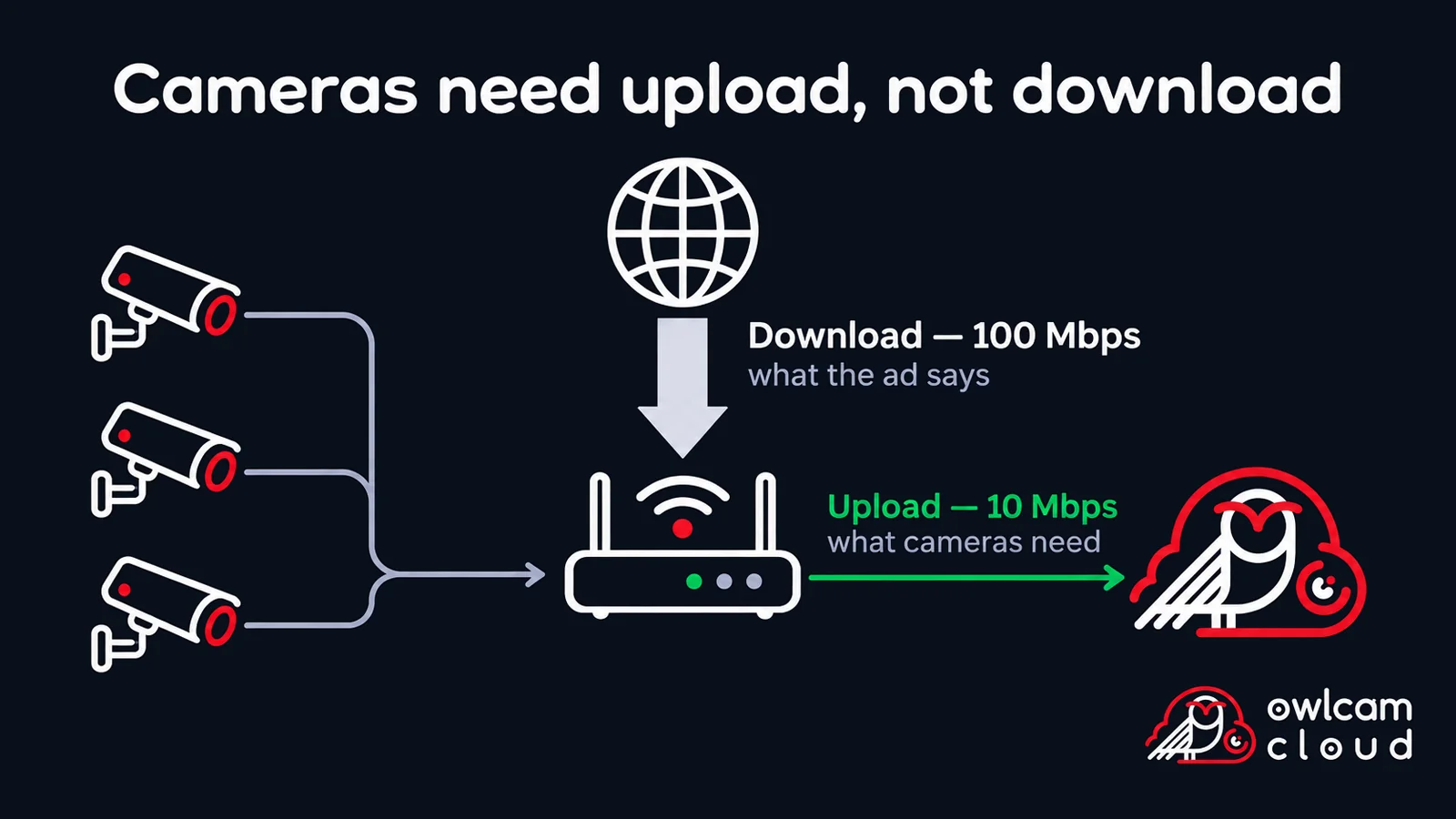
There is a detail here that is easy to miss. In their ads, providers quote download speed — how fast data comes to you. But camera video goes from you to the cloud, so what you need is upload speed. On many plans it is several times lower than download.
Cameras | Basic | Basic+ | Super |
|---|---|---|---|
1 | 0.5 Mbps | 1 Mbps | 2 Mbps |
2 | 1 Mbps | 2 Mbps | 4 Mbps |
4 | 2 Mbps | 4 Mbps | 8 Mbps |
5 | 2.5 Mbps | 5 Mbps | 10 Mbps |
8 | 4 Mbps | 8 Mbps | 16 Mbps |
Add some headroom to the figures in the table — about a quarter. Internet speed rarely holds steady all day, and the cameras share the connection with other devices: computers, the till, staff phones.
How to check your upload speed
The easiest way is to run any browser speed test on a computer connected to the same network as the cameras. The result shows two numbers: download and upload. You need the second one.
Test during working hours, when the network is used as usual — that way the result is closer to reality. If the upload is lower than the table requires with headroom, there are a few options: lower the stream in the camera settings, connect fewer cameras to the cloud, or ask your provider for a plan with faster upload.
If your internet is mobile
At a country house, a private home outside the city or a temporary site, internet often comes through a 4G modem or a router with a SIM card. Here volume becomes the main limit.
For example, a 50 GB package will last one camera on the basic stream about 9 days. So mobile internet only works on a plan with no volume limit — or with a volume well above the figures in the table above.
The second feature of mobile internet is that upload speed changes during the day and depends on how busy the cell tower is. Headroom matters especially here.
How to reduce traffic
If traffic or speed is not enough, you don’t have to change your plan — often it is enough to adjust the cameras themselves.
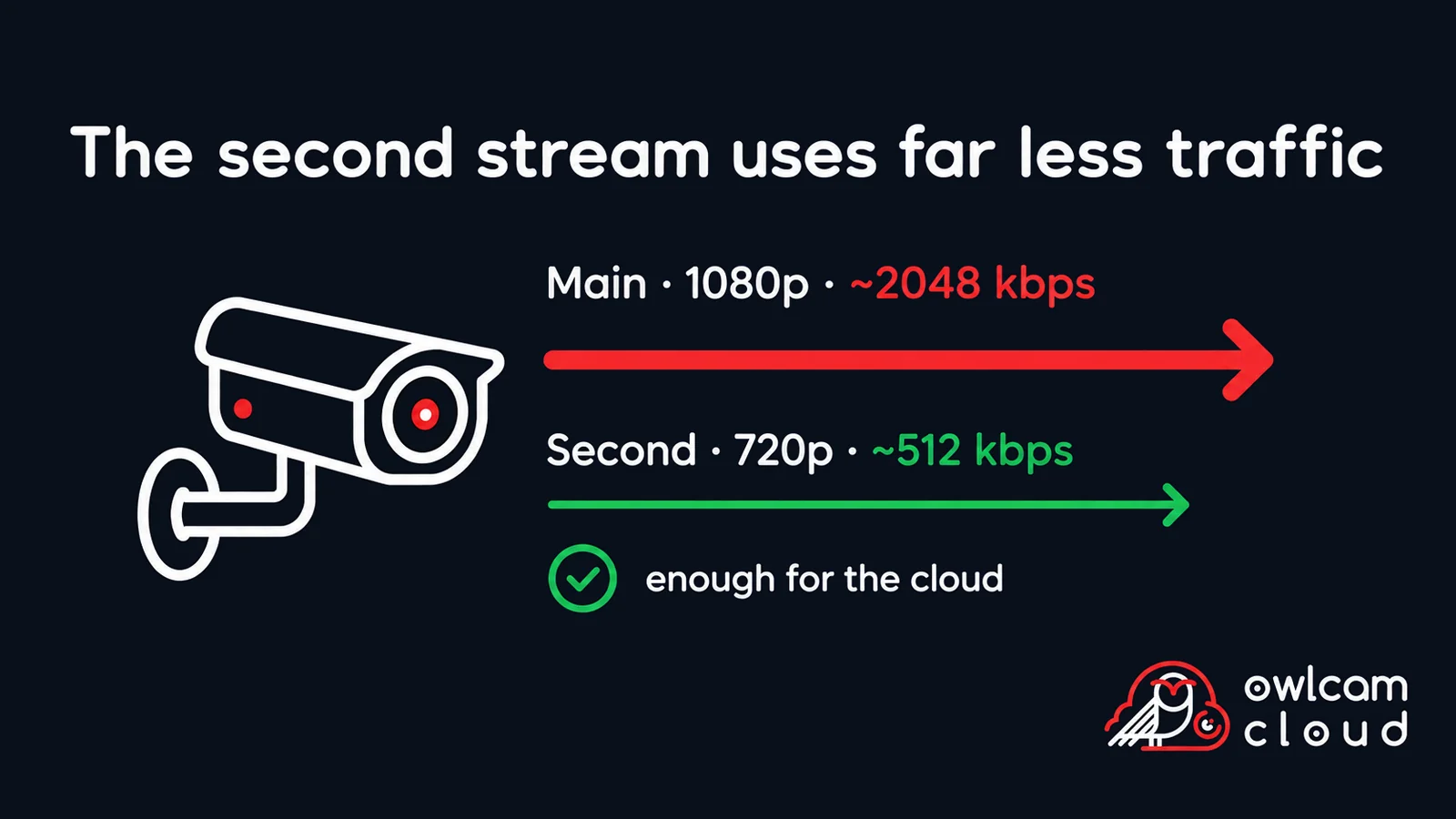
Switch to the second stream. Most IP cameras send two streams: the main one in high resolution and an additional, simpler one. For cloud recording the additional stream is often more than enough, and it needs several times less traffic.
Lower the bitrate in the camera settings. If a camera sends more than 512 kbps, the stream can be limited right in its web interface.
Connect only the cameras you need to the cloud. A camera pointed at a corridor wall can be left without cloud recording to save its share of traffic.
Does watching recordings affect the site’s traffic
No. The camera sends video to the cloud once, and you watch it from the cloud — on a phone or computer, through your personal account. However many people open a recording, it does not load the internet at the site: traffic is used only by the device it is watched on.
In short
One camera on the basic stream needs 0.5 Mbps of upload and about 166 GB a month.
Traffic and speed add up with the number of cameras.
Look at upload speed, not download, and add a quarter for headroom.
Mobile internet only works without a volume limit.
If it is not enough, switch the cameras to the second stream or lower the bitrate.
Not sure your internet will cope? Send us your speed test result and the number of cameras — we’ll calculate it and suggest which stream to choose.